Can I print a flyer with my Event’s QR code?
Updated 2024-03-14
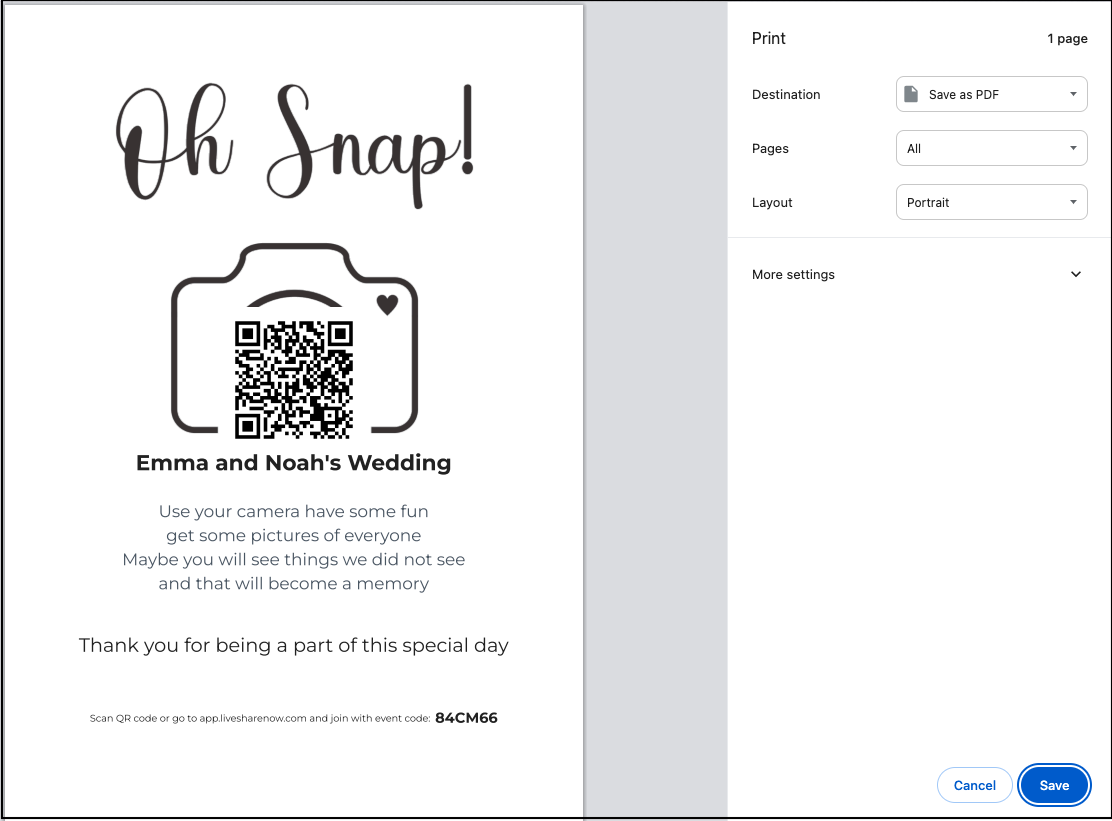
You can quickly create a PDF and/or print a Welcome flyer, with your Event’s Name, QR code and Event code from the Share screen.
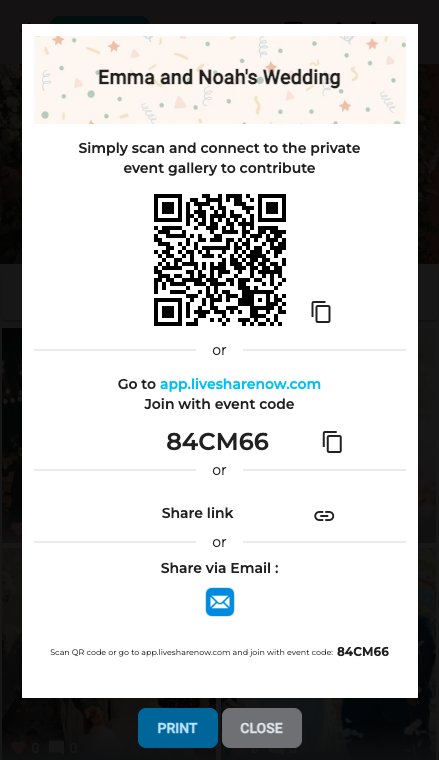
- Click the Share icon in the top right, as shown below.

- Click the PRINT button at the bottom of the Share screen, as shown below.
- In the new screen, in the top right, select ‘Save as PDF’ and click ‘SAVE’ in the bottom right. Or choose a printer attached to your PC. You can take the PDF file to a print shop or print from another PC.