What is a Sponsor Post?
Updated 2024-11-22
This feature allows the Host to send a sponsored message or website to your guests. These tiles can be intermixed with the user posts at a set spacing. The ‘Sponsor Post’ is activated in the Premium Plus settings.
The Host can create these posts and configure the settings prior to the event.
- The Host will click the add ‘+’ button, click ‘Sponsor’ and select the image to upload.
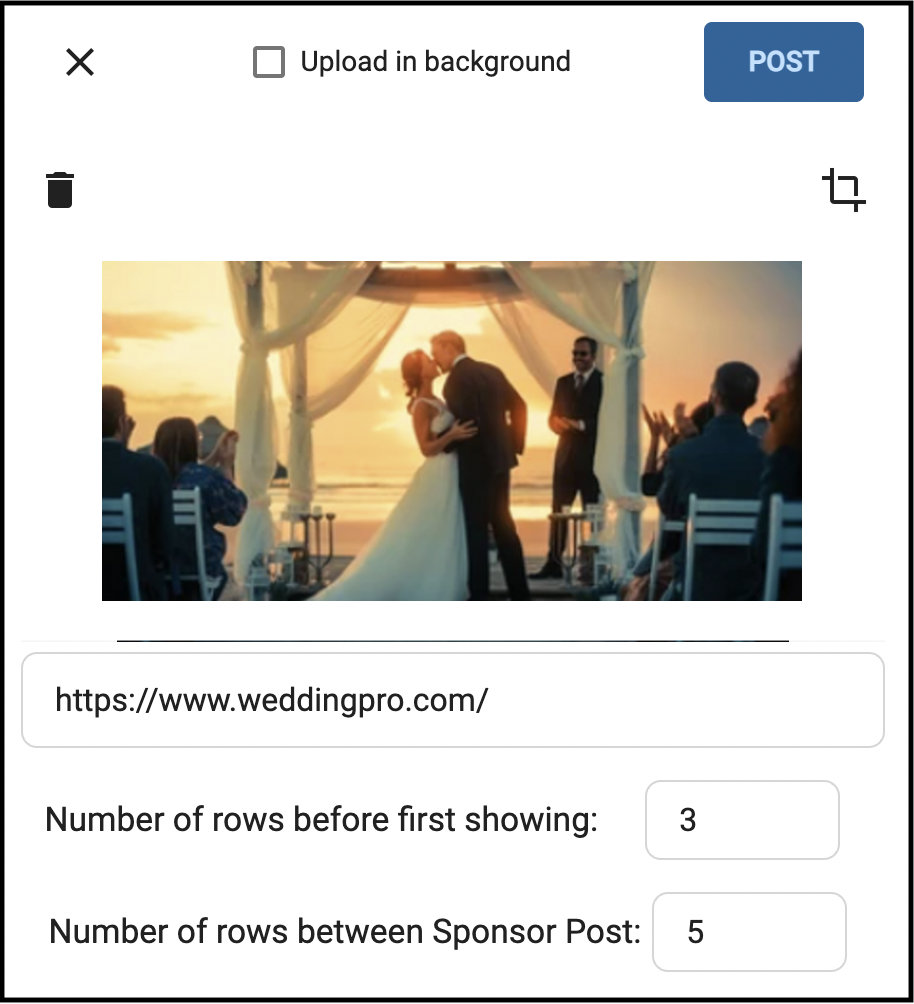
The Host can then enter a website URL for the guest to open in a new tab.
Then set the number of rows before the first Sponsor post, and rows between posts.
When guests view the Sponsor Post in their timeline, it will be displayed the full width of the timeline, as determined by the View setting (e.g. 2x2, 3x3, or Timeline)

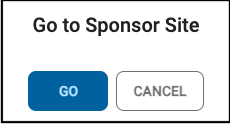
When a guest clicks the Sponsored image, the following popup is displayed.
They can then click ‘Go’ to open the website in a new tab.