
Multi-Event feature: Use a single QR code to access Multiple Events
Updated 2024-11-26
Our new Multi-Event feature allows you to use a single QR code to access multiple events. For example, for your wedding you want to have separate LiveShare Events for your Wedding Shower, Bachelor Party, Rehearsal Dinner, Wedding and Wedding Reception. But you don’t want your guests managing four different QR codes. The ‘Multi-Event’ feature allows your guests to access multiple events from one QR code.
Multi-Event Setup
Most likely you’ve purchased the Annual Subscription if you are using two or more events, or you can purchase multiple events separately.
On the EVENTS page you will have two or more Events displayed, as shown below. When the ‘My Events’ tab is selected, as shown below, all your Events will be displayed.
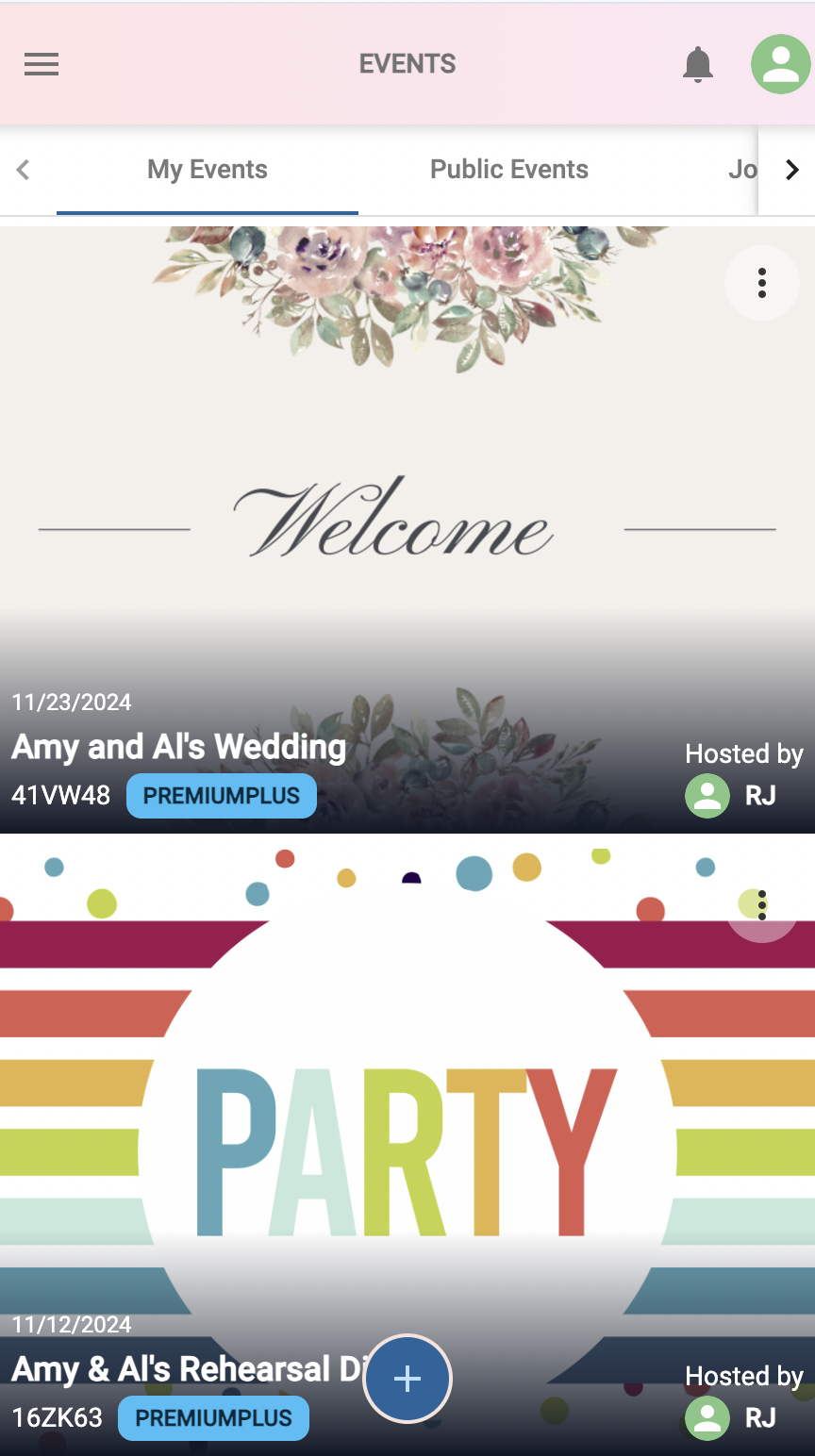
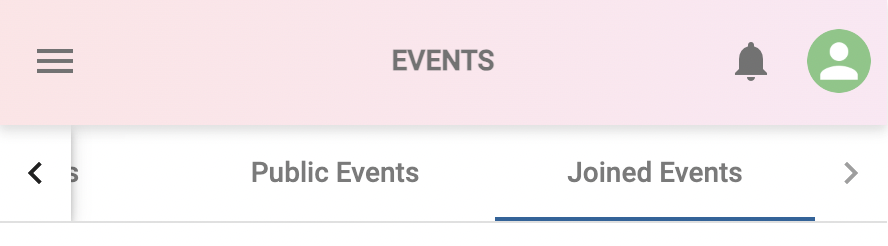
- Initially the ‘Public Events’ and ‘Joined Events’ tabs may not display any Events, unless you have been a guest at a previous LiveShare event. Use the left/right arrow buttons and tap/click the desired tab: My Events, Public Events, Joined Events
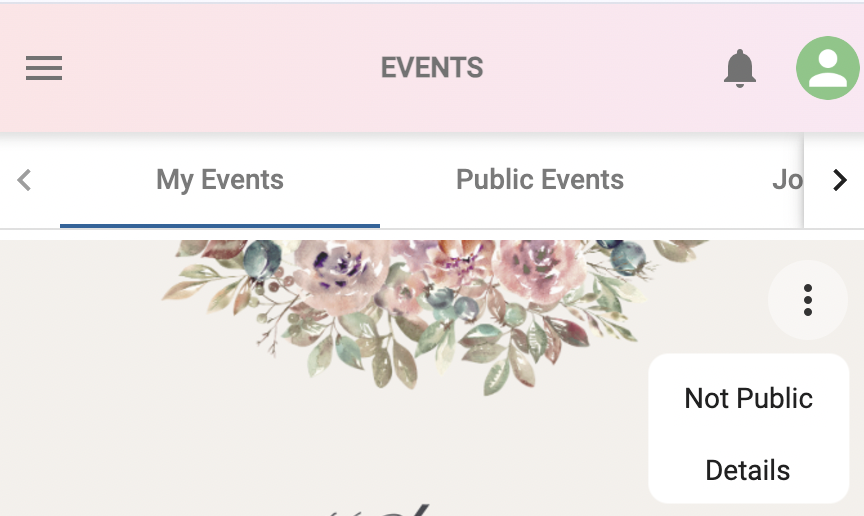
- To allow guests to access an Event, click the 3-dot menu on the Event and in the pop-up menu click on ‘Not Public’, as shown below. Now that you’ve made the Event Public, click the ‘Public Events’ tab to see this Event listed. Tap the 3-dot menu, and it will now show ‘Public’.
- Continue to set the additional desired Events to Public.
**- Access the QR Code for a Multi-Event **
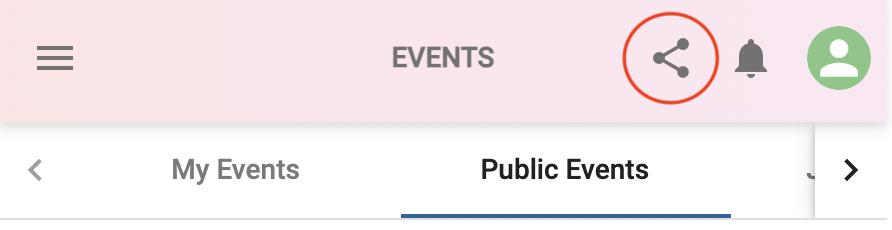
To access the QR Code and Link for your Multi-Event, select the ‘Public Events’ tab.
Then click the Share icon, as shown below. The single QR code and Link are displayed to access all your Public Events. Click the copy icon to the right of the QR and/or the Link to copy/paste the QR and/or Link.
- Enter a Name for your Multi-Event party. Click on the ‘Nickname’ button, as shown below. Enter a name and click ‘Save’. This name will be displayed in the button and on the printed flyer, as reviewed below.
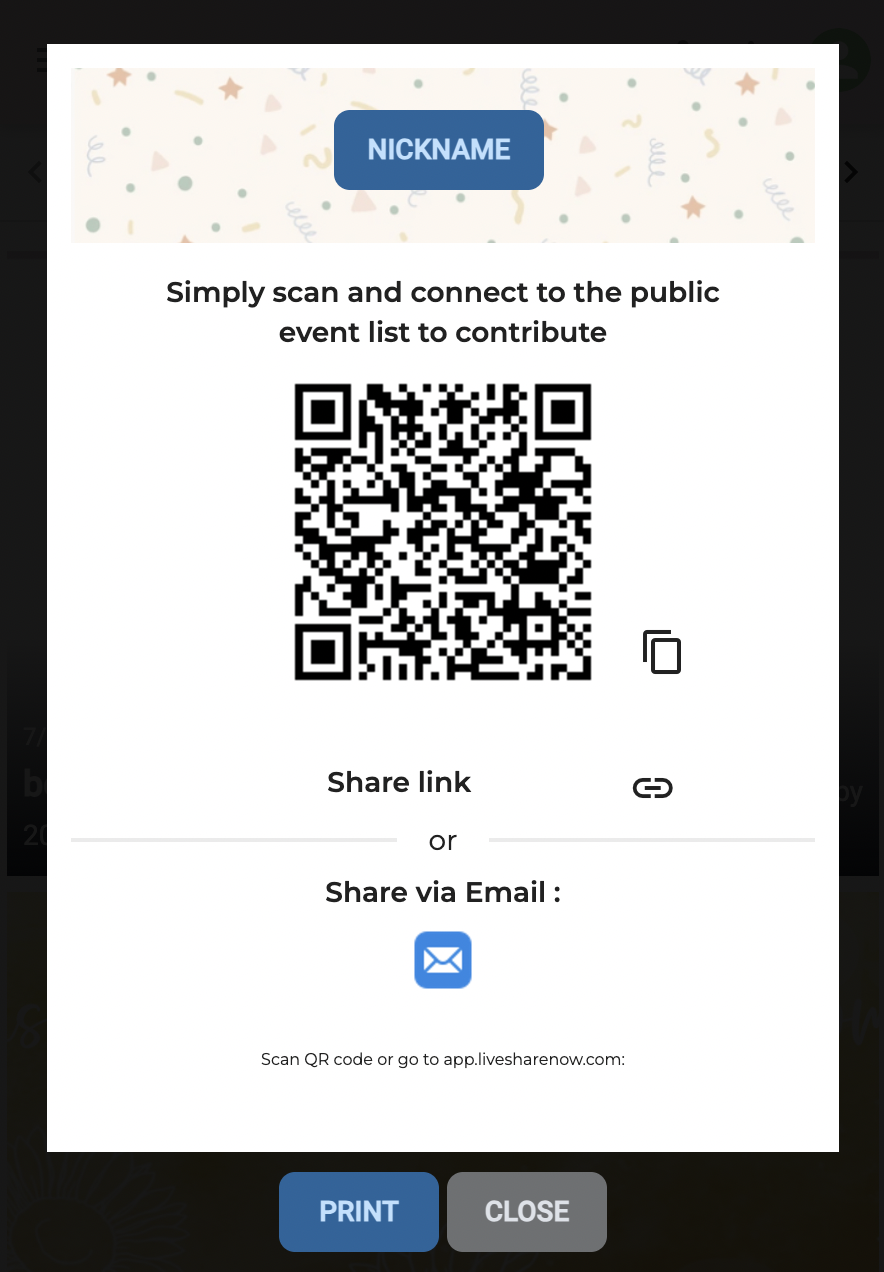
Print a flyer (8.5"x10”) for your Multi-Event party. Click the ‘Print’ button to print the flyer. See this FAQ for additional information.
Share your Multi-Event Party QR Code and Link with friends and family. Click the copy icon to the right of the QR and Link to copy/paste the QR and/or Link.